EC2 Instructions
Instructions for setting up a remote server on EC2
In this guide we will show you how to setup a remote server on AWS EC2 and add an SSH Key on dokploy to connect to the server and start deploying your applications.
Requirements
- An AWS account
- A domain that is managed by AWS Route53
1. Create an SSH Key
If you already have an SSH Key you can skip this step and simply go to settings -> SSH Keys and add the SSH Key you have stored on your machine
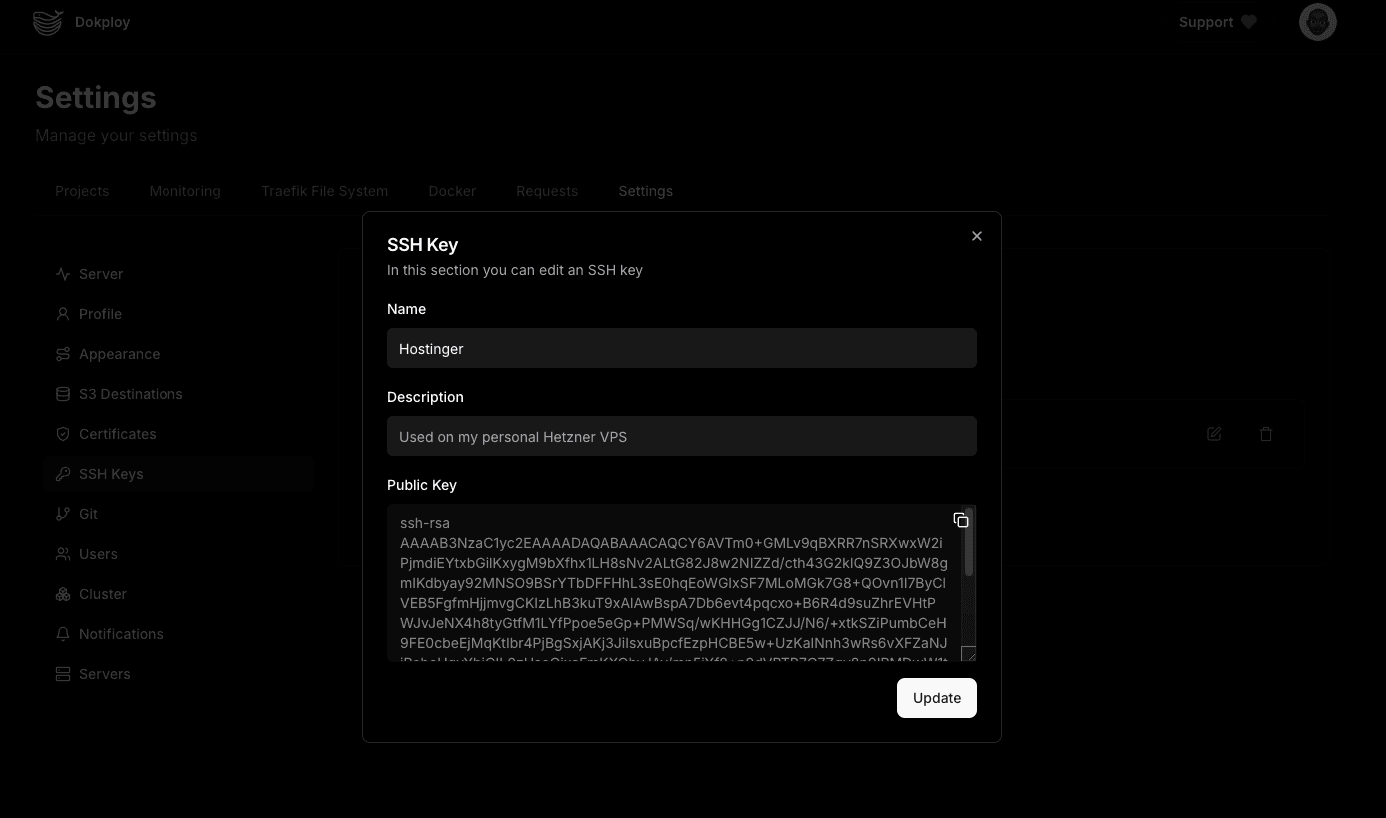
Navigate to Dokploy Settings -> SSH Keys and add a new key
You will receive a public key and a private key. Copy the public key and save it.
2. Create an EC2 Instance
Login to your AWS account, navigate to EC2 and click on Launch Instance.
We will then be prompted to select an AMI (Amazon Machine Image) and we will select the Ubuntu Server 22.04 LTS AMI.
It should like this:
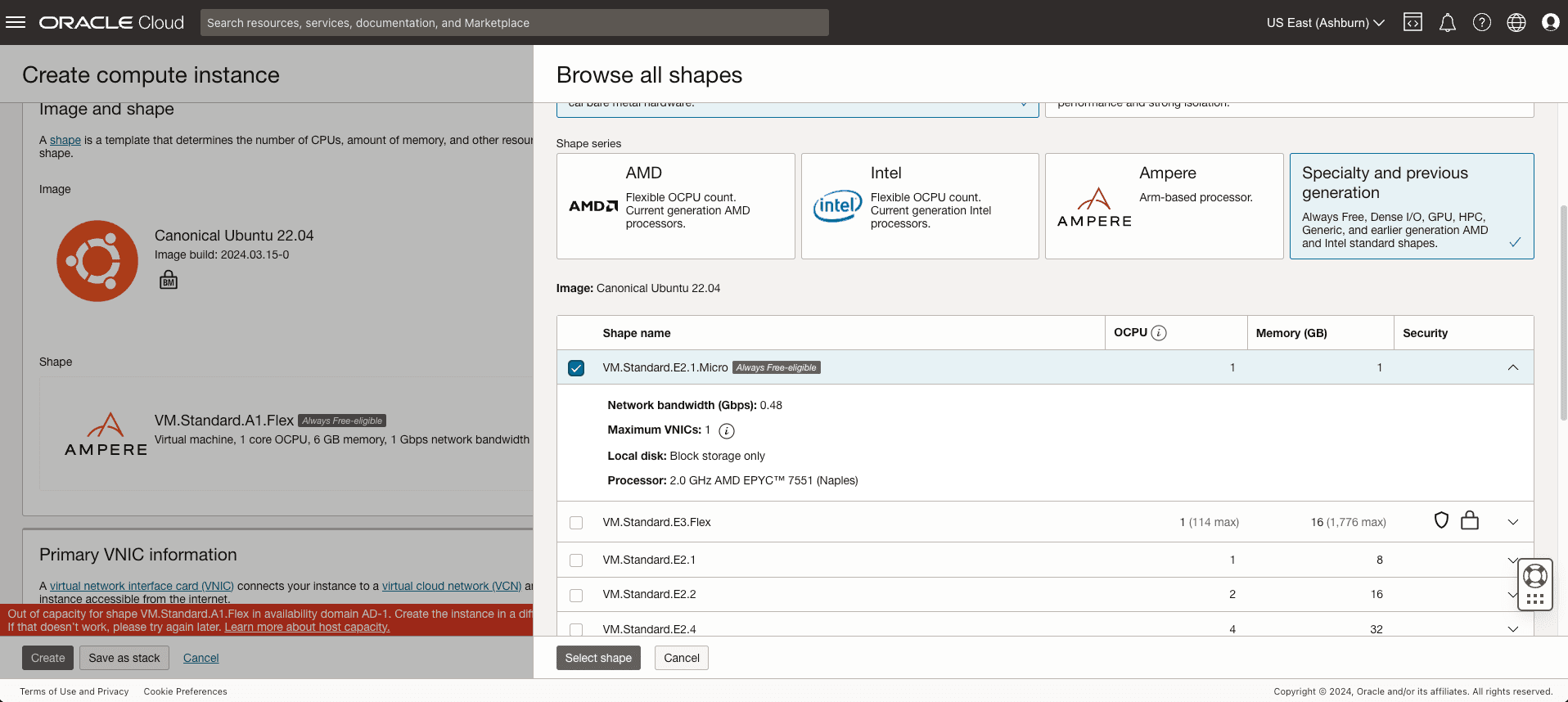
Select the instance type you want to use. For this guide we will use the t2.micro instance type which is free tier eligible.
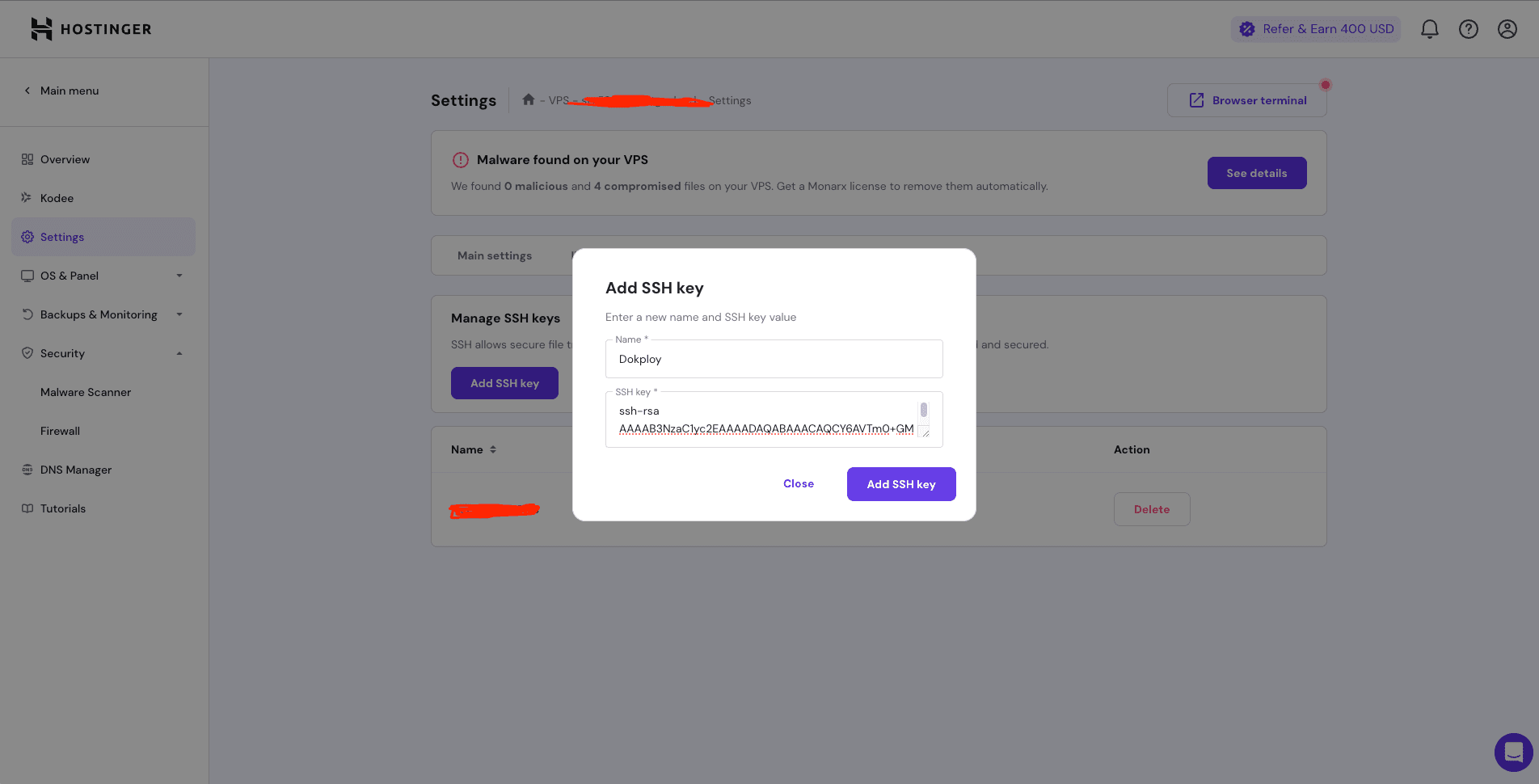
Now we need to add the SSH Key we created in step 1 to the EC2 instance.
Click on Security Group and then add a new key pair.
Add the name of your SSH Key and paste the public key you copied in step 1.
You will have to create a security group that allows SSH (port 22) access from your IP address. and open all HTTP and HTTPS ports for ingress and egress traffic (Port 80 and 443).
Opening port 22 to the internet is a security risk. It is recommended to use a bastion host or a VPN to access your EC2 instance securely.
Now click on Launch Instance and wait for the instance to be created.
3. Add the Server to Dokploy
Now that we have the EC2 instance running, we can add it to Dokploy.
Navigate to Dokploy -> Settings -> Servers and click on Add Server and copy the server IP Address.
4. Setup the Server
Navigate to Dokploy -> Settings -> Servers -> Setup Server and follow the instructions.
5. Deploy your application
Now that the server is setup, you can deploy your application to the server.