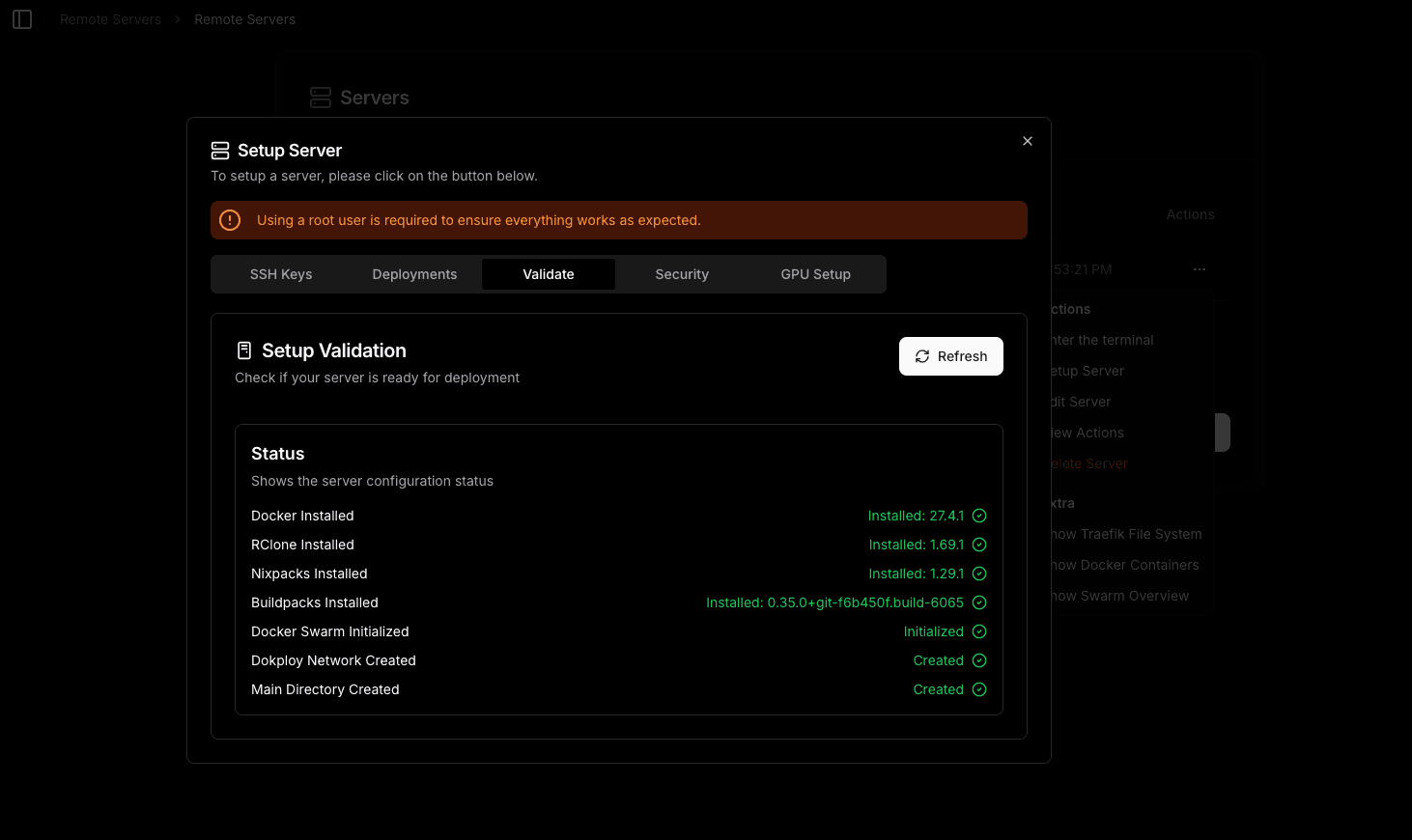
Validate
Validate your remote server deployment
Dokploy validates different components depending on the type of remote server you're configuring. The validation requirements differ between Deployment Servers and Build Servers.
Deployment Servers
For Deployment Servers, Dokploy requires the following 7 components to be properly configured:
- Docker Installed: Docker must be installed on the remote server.
- RClone Installed: RClone must be installed on the remote server.
- Nixpacks Installed: Nixpacks must be installed on the remote server.
- Railpack Installed: Railpack must be installed on the remote server.
- Buildpacks Installed: Buildpacks must be installed on the remote server.
- Docker Swarm Initialized: Docker Swarm must be initialized on the remote server.
- Dokploy Network Created: A Docker network for Dokploy must be created on the remote server.
- Main Directory Created: A directory must be created on the remote server to store applications.
Deployment servers are used to run and host your applications. They require Docker Swarm and network configuration since they need to run containers and manage deployments.
Build Servers
For Build Servers, Dokploy only validates the following components:
- Docker Installed: Docker must be installed on the remote server.
- RClone Installed: RClone must be installed on the remote server.
- Nixpacks Installed: Nixpacks must be installed on the remote server.
- Railpack Installed: Railpack must be installed on the remote server.
- Buildpacks Installed: Buildpacks must be installed on the remote server.
- Main Directory Created: A directory must be created on the remote server to store applications.
Build servers are dedicated to building and compiling applications. They don't require Docker Swarm or network configuration since they only build images and push them to a registry, without running any containers.
Validation Status
Once all requirements are met for your server type, you will see a green checkmark next to each item in the validation section.