Docker Compose
Learn how to use Docker Compose with Dokploy
Dokploy integrates with Docker Compose and Docker Stack to provide flexible deployment solutions. Whether you are developing locally or deploying at scale, Dokploy facilitates application management through these powerful Docker tools.
Configuration Methods
Dokploy provides two methods for creating Docker Compose configurations:
- Docker Compose: Ideal for standard Docker Compose configurations.
- Stack: Geared towards orchestrating applications using Docker Swarm. Note that some Docker Compose features, such as
build, are not available in this mode.
General
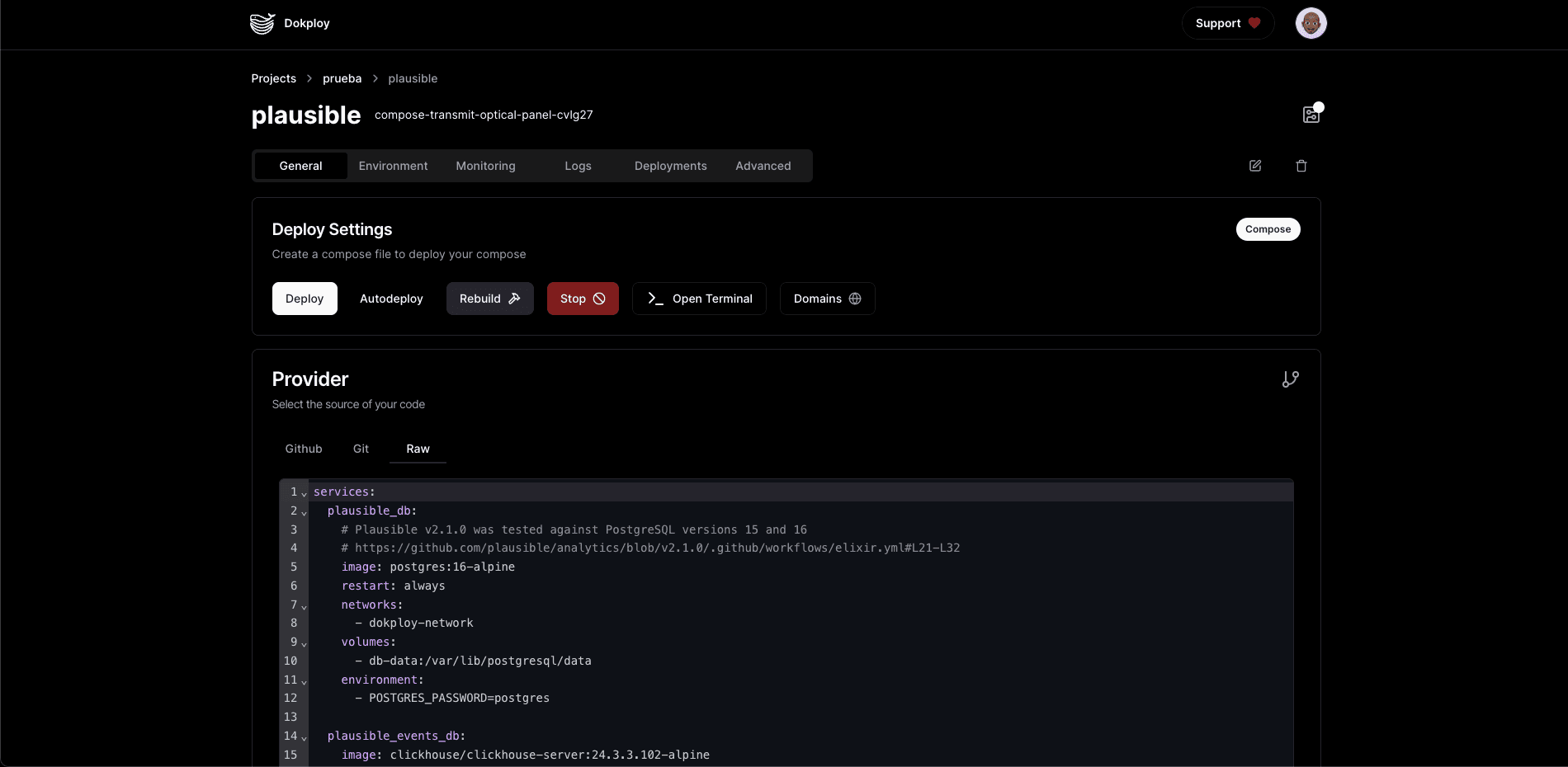
Configure the source of your code, the way your application is built, and also manage actions like deploying, updating, and deleting your application, and stopping it.
Environment
The code editor in Dokploy allows you to define environment variables for your Docker Compose deployment. By default, Dokploy saves these variables to a .env file in the same directory as your docker-compose.yml.
Environment variables set in the UI are written to the .env file, but are not automatically injected into containers. You have two options:
1. Inject all variables — Use the env_file option in your docker-compose.yml to load every variable from the .env file into the container:
services:
  app:
    env_file:
      - .env
2. Use specific variables — Reference only the variables you need using the standard ${VAR_NAME} syntax in your docker-compose.yml:
services:
  app:
    environment:
      - DATABASE_URL=${DATABASE_URL}
      - API_KEY=${API_KEY}
Monitoring
Monitor each service individually within Dokploy. If your application consists of multiple services, each can be monitored separately to ensure optimal performance.
Logs
Access detailed logs for each service through the Dokploy log viewer, which can help in troubleshooting and ensuring the stability of your services.
Deployments
You can view the last 10 deployments of your application. When you deploy your application in real time, a new deployment record will be created and it will gradually show you how your application is being built.
We also offer a button to cancel deployments that are in queue. Note that those in progress cannot be canceled.
We provide a webhook so that you can trigger your own deployments by pushing to your GitHub, Gitea, GitLab, Bitbucket repository.
Advanced
This section provides advanced configuration options for experienced users. It includes tools for custom commands within the container and volumes.
-
Command: Dokploy has a defined command to run the Docker Compose file, ensuring complete control through the UI. However, you can override it with a custom command. Note that the custom command fully replaces the default one (it does not append to it), so if you only need extra flags like
--force-recreate, you must write the full command based on the default shown in the UI. The command always starts withdocker, so a custom command likecompose -p <app-name> -f <compose-path> up -d --build --remove-orphans --force-recreatewill run asdocker compose ....Using Private Registries with Docker Stack
If you're deploying with Docker Stack (Docker Swarm mode) using replicas and a private registry, you need to add the
--with-registry-authflag to ensure that registry credentials are properly distributed to all nodes in your swarm.Without this flag, worker nodes may fail to pull images from private registries, resulting in authentication errors like "no such image" or "docker authentication failed".
This flag ensures that Docker shares the registry credentials with all swarm nodes during deployment, enabling them to authenticate and pull images from your private registry (GitHub Container Registry, Docker Hub private repos, etc.).
-
Volumes: To ensure data persistence across deployments, configure storage volumes for your application.
Volumes
Docker volumes are a way to persist data generated and used by Docker containers. They are particularly useful for maintaining data between container restarts or for sharing data among different containers.
Dokploy supports two methods for data persistence in Docker Compose:
Method 1: Bind Mounts (../files folder)
Use bind mounts for simple persistence needs, configuration files, or when you need direct access to files on the host. This method maps a directory from the host machine into the container.
Important: Avoid using absolute host paths, as they will be cleaned up during deployments:
volumes:
  - "/folder:/path/in/container" ❌
Instead, use the ../files folder to ensure your data persists between deployments:
volumes:
  - "../files/my-database:/var/lib/mysql" ✅
  - "../files/my-configs:/etc/my-app/config" ✅
Use bind mounts when:
- You need simple data persistence
- You're mounting configuration files or small datasets
- You want direct file access on the host
- You don't need automated backups via Dokploy's Volume Backups feature
Method 2: Docker Named Volumes
Use Docker named volumes when you need automated backups, better portability, or Docker-managed storage. Named volumes are managed by Docker and can be backed up automatically using Dokploy's Volume Backups feature.
services:
  app:
    image: dokploy/dokploy:latest
    volumes:
      - my-database:/var/lib/mysql
      - my-app-data:/app/data

volumes:
  my-database:
  my-app-data:
Use named volumes when:
- You need automated backups to S3 (via Volume Backups)
- You want Docker-managed storage (better portability)
- You're storing databases or large datasets
- You need backup and restore capabilities
Note: Volume Backups only work with Docker named volumes, not with bind mounts (../files). If you need backup functionality, use named volumes instead of bind mounts.
Choosing the Right Method
| Feature | Bind Mounts (../files) | Named Volumes |
|---|---|---|
| Simple persistence | ✅ Yes | ✅ Yes |
| Direct host access | ✅ Yes | ❌ No |
| Automated backups | ❌ No | ✅ Yes |
| Docker-managed | ❌ No | ✅ Yes |
| Best for config files | ✅ Yes | ⚠️ Possible but less common |
| Best for databases | ⚠️ Possible | ✅ Recommended |
Important: If you need to use files from your repository (configuration files, scripts, etc.), you must move them to Dokploy's File Mounts (via Advanced → Mounts) instead of mounting them directly from the repository. When using AutoDeploy, Dokploy performs a git clone on each deployment, which clears the repository directory. Mounting files directly from your repository using relative paths (e.g., ./ or ./config/file.conf) will cause them to be lost or empty in subsequent deployments. See the Troubleshooting guide for more details.
Keyboard Shortcuts
To help speed up navigating there are some built in keyboard shortcuts for
navigating tabs on docker compose pages. Similar to GitHub these are all prefixed
with the g key so to use them press g and then the shortcut key.
| Key | Tab |
|---|---|
g | General |
e | Environment |
u | Domains |
d | Deployments |
b | Backups |
s | Schedules |
v | Volume Backups |
l | Logs |
m | Monitoring |
a | Advanced |