Custom Roles
Create custom roles with granular permissions for your organization members
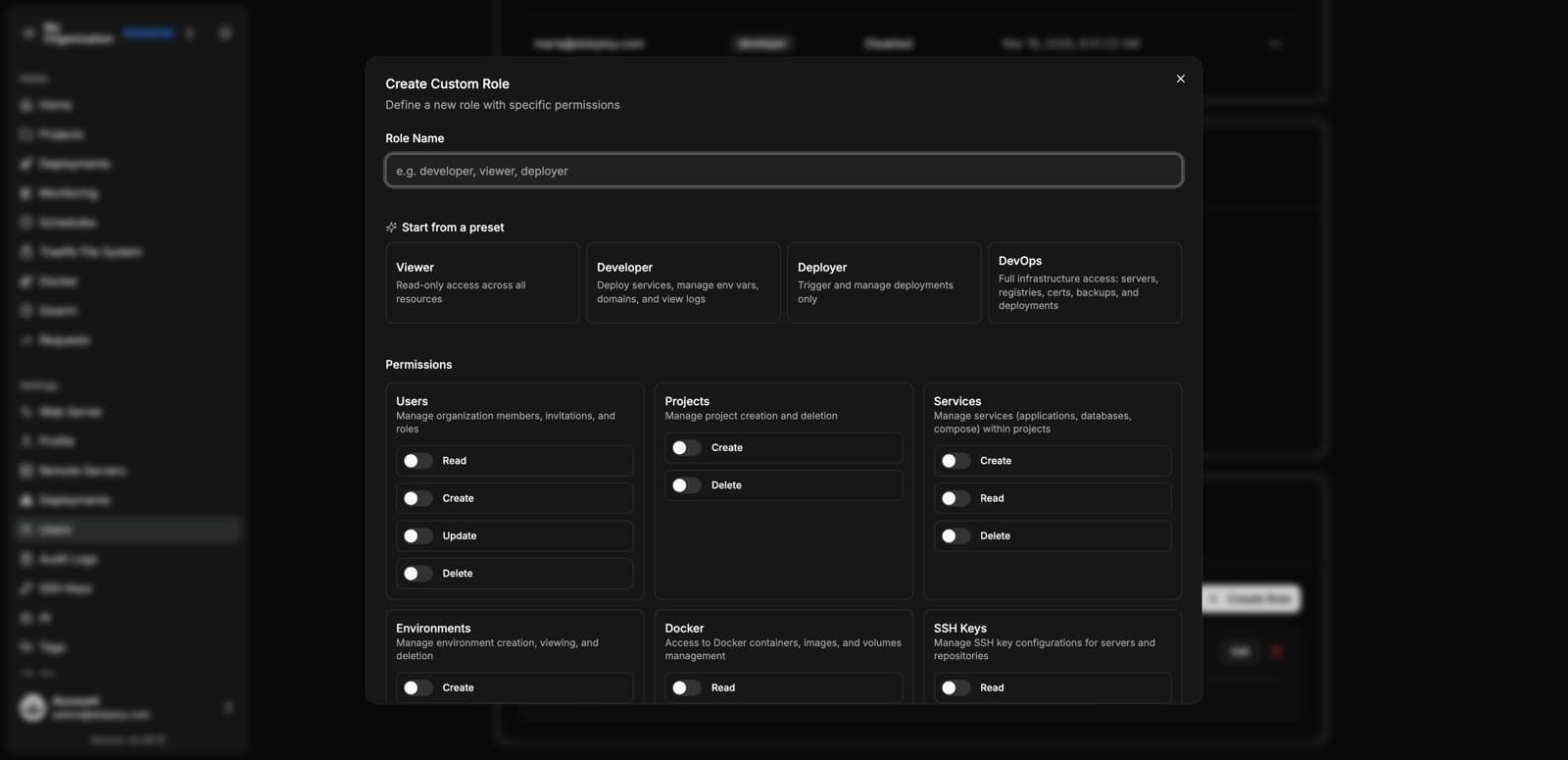
Custom Roles let Enterprise users go beyond the default Owner, Admin, and Member roles by creating tailored roles with fine-grained permissions. Assign exactly the access each team member needs — no more, no less.
Overview
In the free version, Dokploy provides three built-in roles: Owner, Admin, and Member. Members have a limited, fixed set of permissions. With Enterprise, you can create custom roles that combine any of the available permissions below, then assign those roles to users in your organization.
To manage custom roles, go to Settings → Custom Roles.
Available Permissions
Custom roles are built by combining permissions from the following categories:
Users
Manage organization members, invitations, and roles.
- Read — View the list of users and their roles.
- Create — Invite new members to the organization.
- Update — Edit user details and role assignments.
- Delete — Remove members from the organization.
Projects
Manage project creation and deletion.
- Create — Create new projects.
- Delete — Delete existing projects.
Services
Manage services (applications, databases, compose) within projects.
- Create — Create new services inside projects.
- Read — View services and their configurations.
- Delete — Remove services from projects.
Environments
Manage environment creation, viewing, and deletion.
- Create — Create new environments within projects.
- Read — View environments and their settings.
- Delete — Remove environments.
Docker
Access to Docker containers, images, and volumes management.
- Read — View Docker containers, images, and volumes.
SSH Keys
Manage SSH key configurations for servers and repositories.
- Read — View existing SSH keys.
- Create — Add new SSH keys.
- Delete — Remove SSH keys.
Git Providers
Access to Git providers (GitHub, GitLab, Bitbucket, Gitea).
- Read — View connected Git providers.
- Create — Connect new Git providers.
- Delete — Remove Git provider connections.
Traefik Files
Access to the Traefik file system configuration.
- Read — View Traefik configuration files.
- Write — Edit Traefik configuration files.
API / CLI
Access to API keys and CLI usage.
- Read — View and use API keys and CLI.
Volumes
Manage persistent volumes and mounts attached to services.
- Read — View volumes and their configurations.
- Create — Create new volumes.
- Delete — Remove volumes.
Deployments
Trigger, view, and cancel service deployments.
- Read — View deployment history and status.
- Deploy — Trigger new deployments.
- Cancel — Cancel running deployments.
Service Environment Variables
View and edit environment variables of services.
- Read — View service environment variables.
- Write — Edit service environment variables.
Project Shared Environment Variables
View and edit shared environment variables at the project level.
- Read — View project-level shared environment variables.
- Write — Edit project-level shared environment variables.
Environment Shared Environment Variables
View and edit shared environment variables at the environment level.
- Read — View environment-level shared environment variables.
- Write — Edit environment-level shared environment variables.
Servers
Manage remote servers and nodes.
- Read — View server details and status.
- Create — Add new servers.
- Delete — Remove servers.
Registries
Manage Docker image registries.
- Read — View configured registries.
- Create — Add new registries.
- Delete — Remove registries.
Certificates
Manage SSL/TLS certificates.
- Read — View certificates.
- Create — Add new certificates.
- Delete — Remove certificates.
Backups
Manage database backups and restores.
- Read — View existing backups.
- Create — Create new backups.
- Update — Modify backup configurations.
- Delete — Remove backups.
- Restore — Restore from a backup.
Volume Backups
Manage Docker volume backups and restores.
- Read — View volume backups.
- Create — Create new volume backups.
- Update — Modify volume backup configurations.
- Delete — Remove volume backups.
- Restore — Restore from a volume backup.
Schedules
Manage scheduled jobs (commands, deployments, scripts).
- Read — View scheduled jobs.
- Create — Create new scheduled jobs.
- Update — Modify existing scheduled jobs.
- Delete — Remove scheduled jobs.
Domains
Manage custom domains assigned to services.
- Read — View configured domains.
- Create — Add new domains.
- Delete — Remove domains.
S3 Destinations
Manage S3-compatible backup destinations (AWS, Cloudflare R2, etc.).
- Read — View configured S3 destinations.
- Create — Add new S3 destinations.
- Delete — Remove S3 destinations.
Notifications
Manage notification providers (Slack, Discord, Telegram, etc.).
- Read — View notification providers.
- Create — Add new notification providers.
- Update — Modify notification configurations.
- Delete — Remove notification providers.
Tags
Manage tags used to organize and filter projects.
- Read — View tags.
- Create — Create new tags.
- Update — Edit existing tags.
- Delete — Remove tags.
Logs
View service and deployment logs.
- Read — View logs.
Monitoring
View server and service metrics (CPU, RAM, disk).
- Read — View monitoring metrics.
Audit Logs
View the audit log of actions performed in the organization.
- Read — View audit log entries.
Secrets Providers
Manage connections to external secret managers (HashiCorp Vault / OpenBao, Infisical, AWS Secrets Manager, Doppler, Azure Key Vault, Scaleway Secret Manager) used to reference secrets in environment variables. See Secrets Providers.
- Read — View provider names and secret names (powers the
${{vault.*}}autocomplete). - Create — Add new secrets providers.
- Update — Edit existing provider configuration and assignments.
- Delete — Remove secrets providers.
DNS Providers
Manage connections to DNS providers (Cloudflare, AWS Route53) used to automatically create A/CNAME records for domains. See DNS Providers.
- Read — View configured DNS providers.
- Create — Add new DNS providers.
- Update — Edit existing DNS provider configuration.
- Delete — Remove DNS providers.
Creating a Custom Role
- Go to Settings → Custom Roles.
- Click Create Role.
- Enter a name for the role (e.g.
developer,viewer,deployer). - Select the permissions you want to assign to this role.
- Click Save.
Assigning a Custom Role
- Go to Settings → Users.
- Select the user you want to update.
- Change their role to the custom role you created.
- Click Save.
The user will immediately have access based on the permissions defined in their new role.
Best Practices
- Principle of least privilege — Give each role only the permissions it needs. A developer who only deploys doesn't need access to manage users or certificates.
- Name roles clearly — Use descriptive names like
deployer,viewer, orproject-adminso it's easy to understand what each role can do. - Review roles regularly — As your team and workflows evolve, revisit custom roles to ensure they still match your needs.
For help configuring custom roles, contact us.