Whitelabeling
Rebrand Dokploy with your application name, logos, colors, and custom links
Whitelabeling lets Enterprise users fully rebrand their Dokploy instance. You can customize the application name, logos, favicon, appearance, metadata, links, and error pages — all from Settings → Whitelabel.
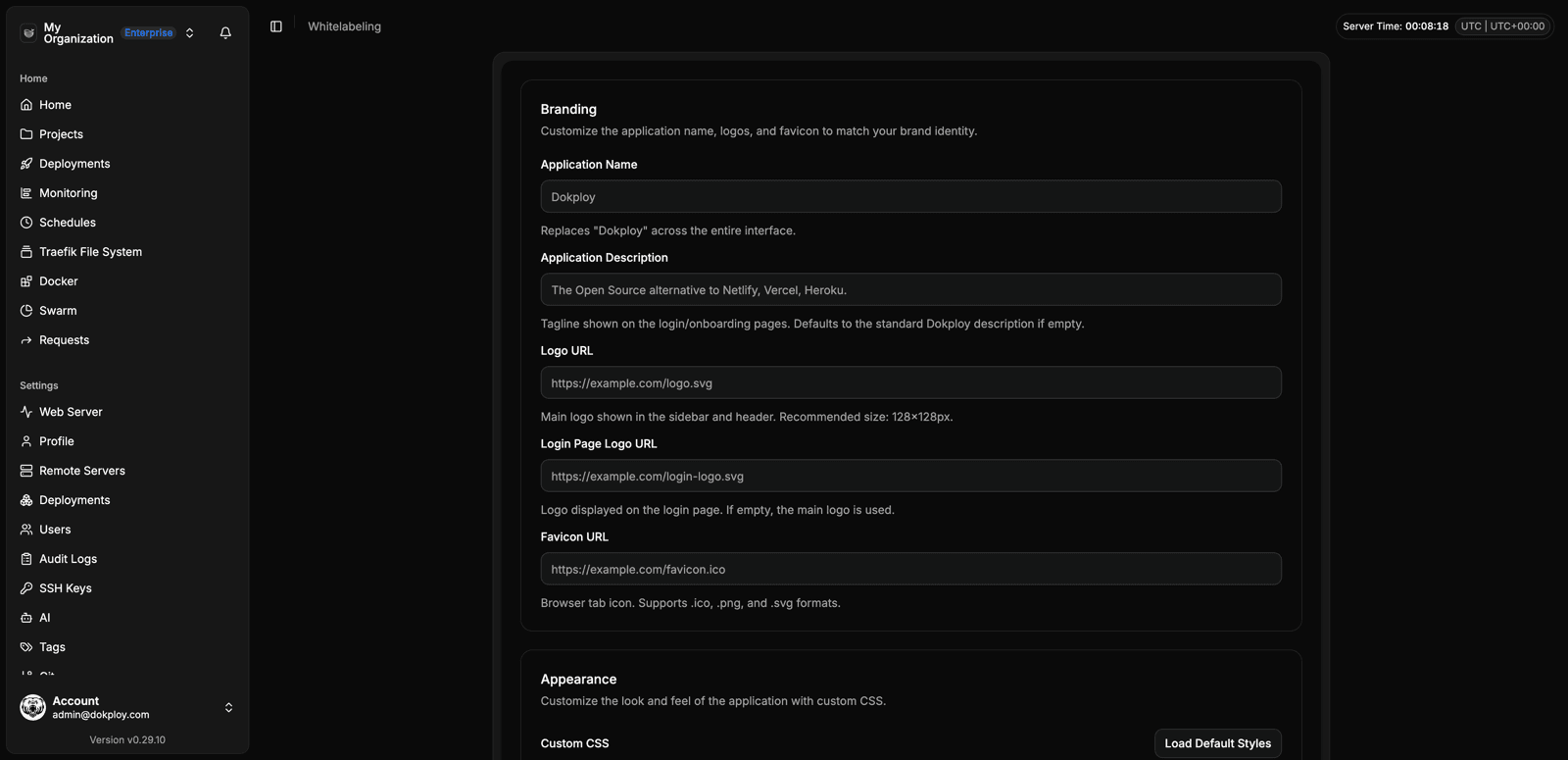
Branding
Customize the application name, logos, and favicon to match your brand identity.
| Field | Description |
|---|---|
| Application Name | Replaces "Dokploy" across the entire interface. |
| Application Description | Tagline shown on the login/onboarding pages. Defaults to the standard Dokploy description if empty. |
| Logo URL | Main logo shown in the sidebar and header. Recommended size: 128×128px. |
| Login Page Logo URL | Logo displayed on the login page. If empty, the main logo is used. |
| Favicon URL | Browser tab icon. Supports .ico, .png, and .svg formats. |
Appearance
Customize the look and feel of the application with custom CSS.
The Custom CSS editor lets you inject custom CSS styles globally. Click Load Default Styles to get the base theme CSS variables as a starting point, then modify the values to match your brand.
Example — changing background and foreground colors:
/* Light Mode */
:root {
  --background: 0 0% 100%;
  --foreground: 240 10% 3.9%;
  --card: 0 0% 100%;
  --card-foreground: 240 10% 3.9%;
  --popover: 0 0% 100%;
  --popover-foreground: 240 10% 3.9%;
}
Metadata & Links
Customize the page title, footer text, and sidebar links.
| Field | Description |
|---|---|
| Page Title | Browser tab title. Defaults to "Dokploy" if empty. |
| Footer Text | Custom text displayed in the footer area. |
| Support URL | Custom URL for the "Support" link in the sidebar. |
| Documentation URL | Custom URL for the "Documentation" link in the sidebar. |
Error Pages
Customize the error page messages shown to users.
| Field | Description |
|---|---|
| Error Page Title | Title shown on error pages. |
| Error Page Description | Description text shown on error pages. Defaults to "We're sorry, but an unexpected error occurred. Please try again later." |
Live Preview
The whitelabel settings page includes a Live Preview section at the bottom. It shows a quick preview of how your branding changes will look — including the logo, application name, button styles, and footer text — before you save.
Actions
- Reset to Defaults — Revert all whitelabel settings back to the default Dokploy branding.
- Save Changes — Apply your customizations.
Best practices
- Use high-resolution logos (e.g. 2×) for sharp display on retina screens. SVG format is recommended for perfect scaling.
- Keep your custom CSS colors accessible with sufficient contrast for text and buttons.
- Test the login page, dashboard, and key workflows after applying changes to ensure nothing is broken or hard to read.
- Always preview your changes using the Live Preview section before saving.
For help enabling or configuring whitelabeling, contact us.